Moderation Setup
Set up mute and quarantine
Setting up Mute
| Command | What it does |
|---|---|
| Mute | Revoke a user's permission to send messages |
| Voice Mute | Revoke a user's permission to speak in voice channels |
| Image Mute | Revoke a user's permission to attach files, embed links and to use external emojis/stickers |
| Reaction Mute | Revoke a user's permission to add reactions |
To easily setup all of the mutes, run the /setup mute command. Here you can select whether you want mute to use Discord's timeout feature or if you want Kuyo to assign a muted role. You can select an existing role for this or leave it empty if you want Kuyo to create one for you.
Checking future channels will add any of the setup roles to new channels that get created.
Setting up Quarantine
Quarantine hides every channel except the quarantine channel and removes their other roles. With zones on, each case gets a private thread and that is the only place they can talk. With zones off, they talk in the quarantine channel.
To setup quarantine, run the /setup quarantine command. Here you can either select from an existing role and channel, leave it empty if you want Kuyo to create one for you. If you already ran the setup command before, or you already set a role/channel through /settings menu, Kuyo will preselect those for you.
Once selected, click submit and Kuyo will update the permissions for each channel.
Quarantine Zones
If enabled, the quarantine channel will be read only and Kuyo will create a new private thread every time someone gets quarantined, similar to tickets.
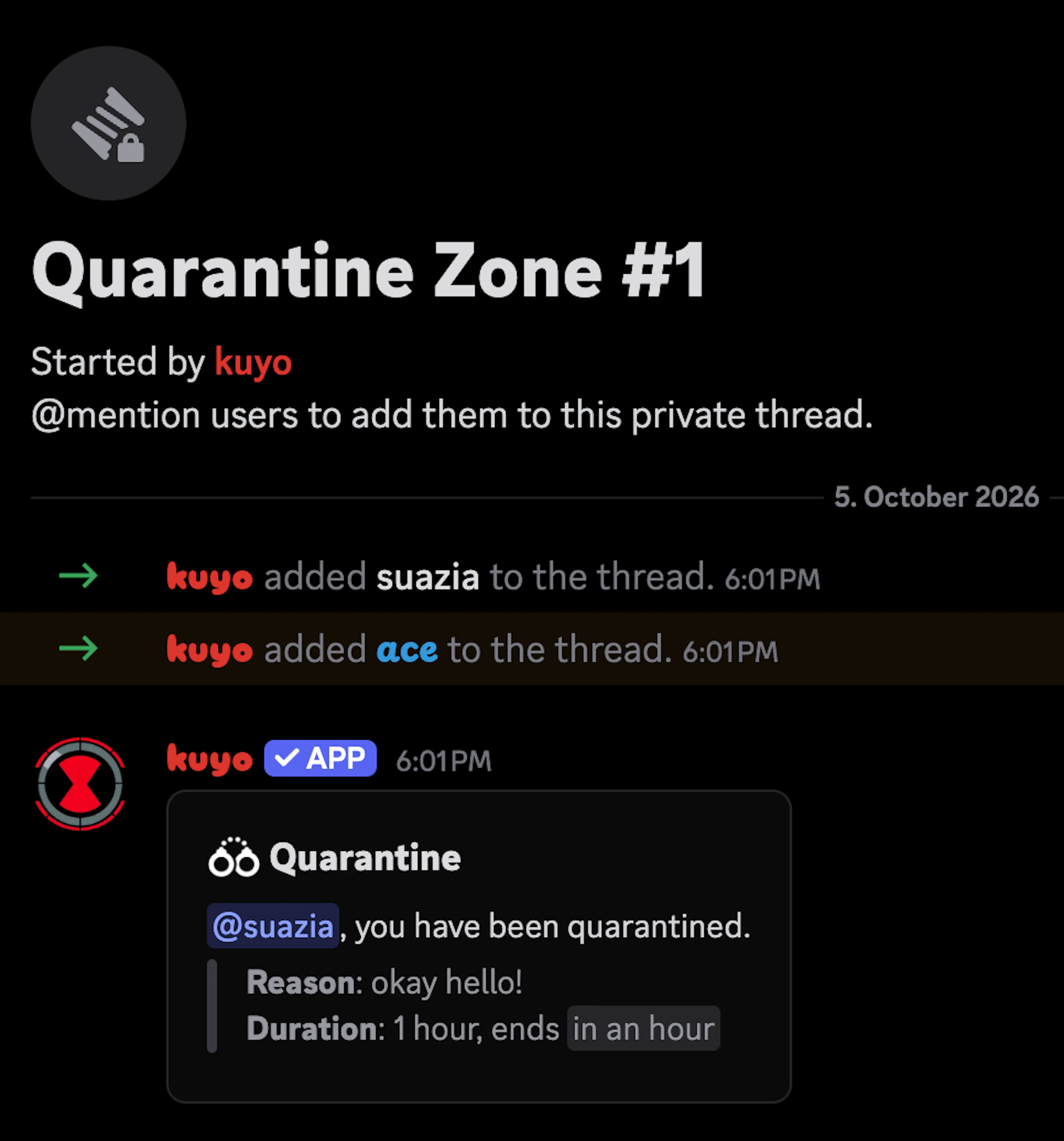
Kuyo will always add the executor as well as the punished user to a thread. Anyone with Manage Threads will have access to them as well.
You can customize the quarantine message that gets sent into a new zone, the channel notice in the quarantine channel and the quarantine zone thread name.
If Future Channels is enabled, Kuyo will automatically add the quarantine role to new channels that get created.