
Appeals
Let punished members appeal from a web page
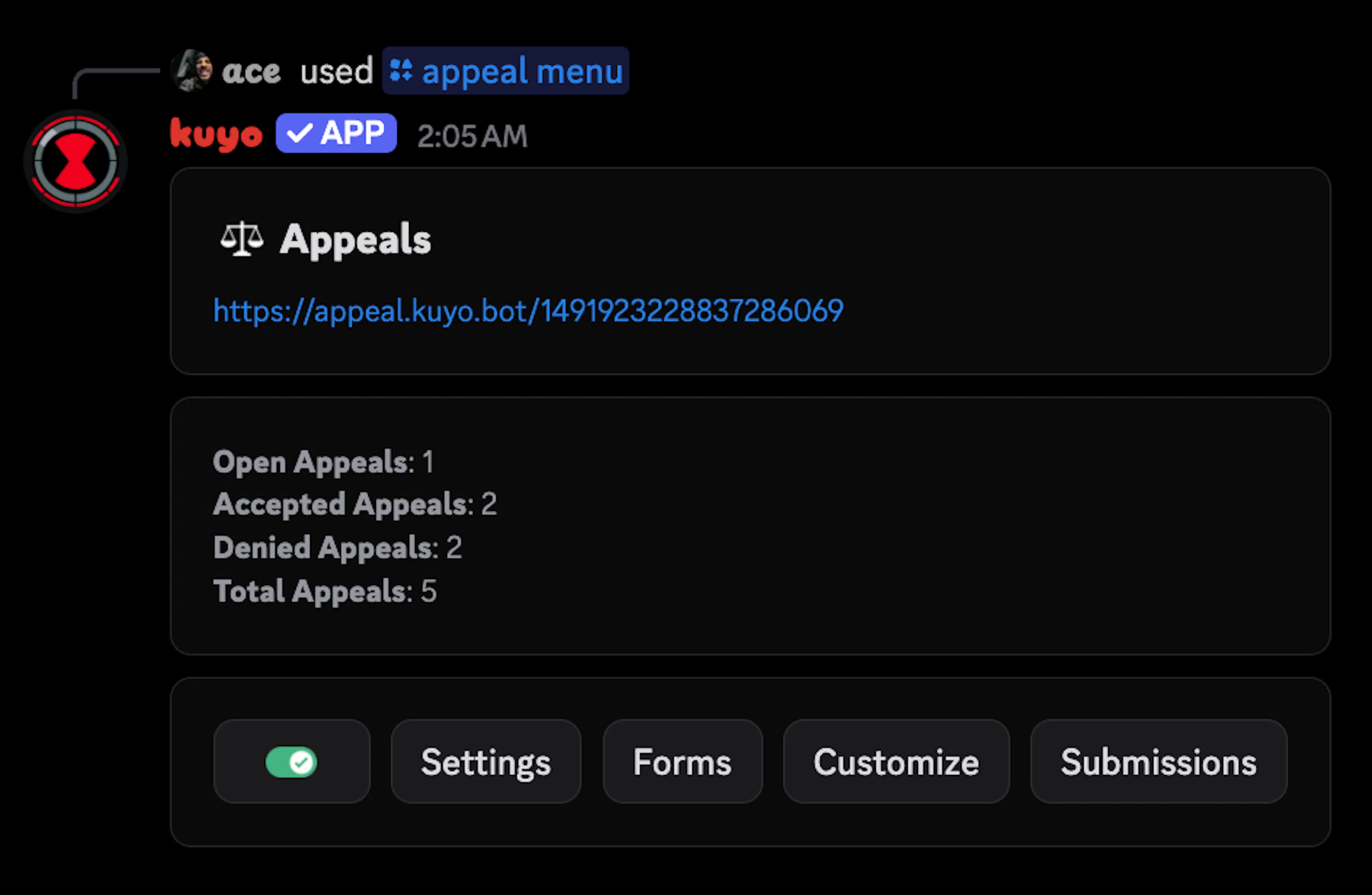
You can set up appeals in the /appeal menu. Punished members fill out a form on your server's appeal page, and your staff accept or deny it in Discord. You can find the link to your appeal page at the top of the menu.
Pick a channel and role
In Settings > General, set the Appeal Channel where appeals get posted and the Reviewer Role that can accept or deny them.
Make a form
Click Forms > Add Form and pick the punishment it's for, like Ban or Timeout. Then add your questions. Each punishment can have one form.
Forms work for Ban, Kick, Warn, Mute, Reaction Mute, Image Mute, Voice Mute, Timeout and Quarantine. A form can have up to 10 pages with 5 questions each. Questions can be Short Text, Paragraph Text, Dropdown, Radio Group, Checkbox Group, Checkbox or File Upload, and a Text Display adds text that isn't a question.
Publish
Turn the form on and click Publish. When you change a form later, publish it again so the page updates.
Add {appeal.link} to your punishment DMs in moderation settings so people know where to appeal.
What the member sees
The member opens your appeal page, logs in with Discord and picks the punishment they want to appeal. They can only appeal punishments they actually have. Banned members can still open the page, since it's a website and not part of your server.
With a File Upload question they can add up to 10 files (you pick the max), up to 10 MB each. This is useful for screenshots as proof.
After they send it, the page shows their Appeal Status: Waiting, Under Review, Accepted or Denied. If staff gave a reason or shortened the punishment, they see that too. While an appeal for a punishment is still waiting, they can't send another one for it.
Kuyo also DMs them when the appeal is received, accepted and denied. If their DMs are closed the appeal still goes through, they just don't get the DM. You can change these messages under Customize > Messages.
Reviewing appeals
Only the server owner and the Reviewer Role can accept or deny appeals. Each appeal gets posted in your Appeal Channel with Accept, Deny, Case and Undo buttons.
When you accept, Kuyo lifts the punishment, for example it unbans them. For a punishment with a duration, like a timeout, you can enter a shorter time instead. Kicks have no length, so accepting a kick just closes the appeal.
Undo puts the appeal back to waiting so you can decide again, and reopens the case if accepting closed it. It doesn't give the punishment back.
Settings
All of these are in Settings in the /appeal menu.
General
| Setting | What it does |
|---|---|
| Create Invite on Accept | Adds a one-use invite to the accepted DM if they aren't in the server anymore. Not for shortened punishments. |
| Create Thread on Appeal | Opens a thread for each appeal. Needed if your appeal channel is a forum. |
| Close Case on Accept | Also closes the moderation case when you accept. On by default. |
| Show Predefined Reasons | Lets staff pick a saved reason when they accept or deny. On by default. |
| Log Channel | Optional channel for a short log of every decision. |
Limits
| Setting | What it does |
|---|---|
| Wait Before Appeal | How long after the punishment they have to wait before they can appeal, like 1d. |
| Appeal Deadline | How long after the punishment they can still appeal, like 30d. |
| Appeals Per Case | How many times one case can be appealed. Empty means no limit. |
| Total Appeals | How many appeals one person can send in a time window. By default 1 every 30 minutes. |
| After Denial | How long they have to wait to appeal again after a denial, like 7d, or permanent. |
Punishments
Pick a punishment to set a Default Duration and Default Reason. These get filled in when you click Accept, so you don't have to type them every time. For example, set Ban to 7d and every accepted ban appeal starts as "shorten to 7 days". Leave the duration empty to fully remove the punishment. Turn on Force Reason so staff must give a reason when they accept.
Predefined Reasons
Save up to 25 reasons with a short name and full text, like "Second chance". Staff can pick one when they accept or deny instead of typing it.
Description
The text at the top of your appeal page. By default it shows your server description, and you can use {guild.name}, {server.name}, {guild.id} and {guild.description}.
To stop someone from appealing at all, use /appeal blacklist with Add. You can block them from one form or all of them.