
Panels
Set up forms like staff applications, suggestions, anonymous confessions and more
You can set up panels in the /panels menu. A panel is an application form, like a staff application or a partner request. Members click the button on the panel message, answer your questions and staff review the answers in a channel.
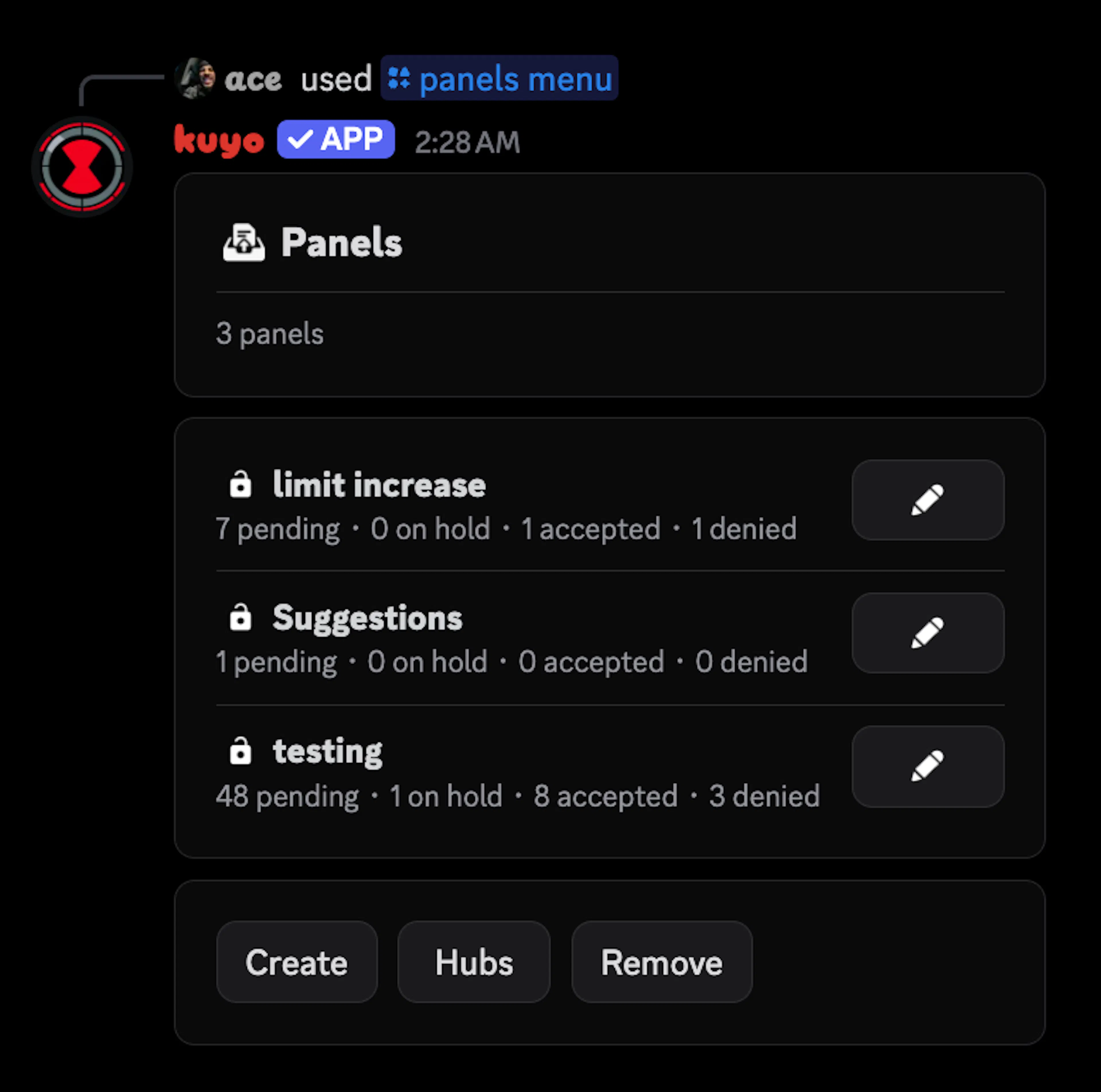
Create a panel
Click Create and give it a name. If another server shared a panel with you, paste its Share Code here, or you can duplicate an existing panel.
Add questions
Open the Builder and add your questions. You can use text answers, dropdowns, checkboxes, file uploads and member, role or channel pickers.
Set the channels
In Settings > Channels, set the Panel channel where members apply and the Review channel where submissions go.
Pick who reviews
In Settings > Roles, add your staff to Review Roles. Only they can accept, deny and manage submissions.
Send it
Use /panels send and pick your panel to post it in the panel channel.
Creating a Panel
When you click Create you can fill in:
Panel Name: The name of the panel, up to 80 characters.
Duplicate From: Copies a panel from this server, everything except its submissions.
Share Code: Imports a panel someone shared with you.
To share a panel, click Export next to the panel name or use /panels export. You get a share code that anyone can import.
A share code copies the questions, settings, messages and predefined reasons, but no channels or roles. Set them again after importing. The panel's slash command and decision channels also start turned off.
Builder
A panel is split into steps. Each step is one form with up to 5 questions. Members click Apply, fill out every step and then click Submit. Kuyo saves their answers in between, so they can finish later.
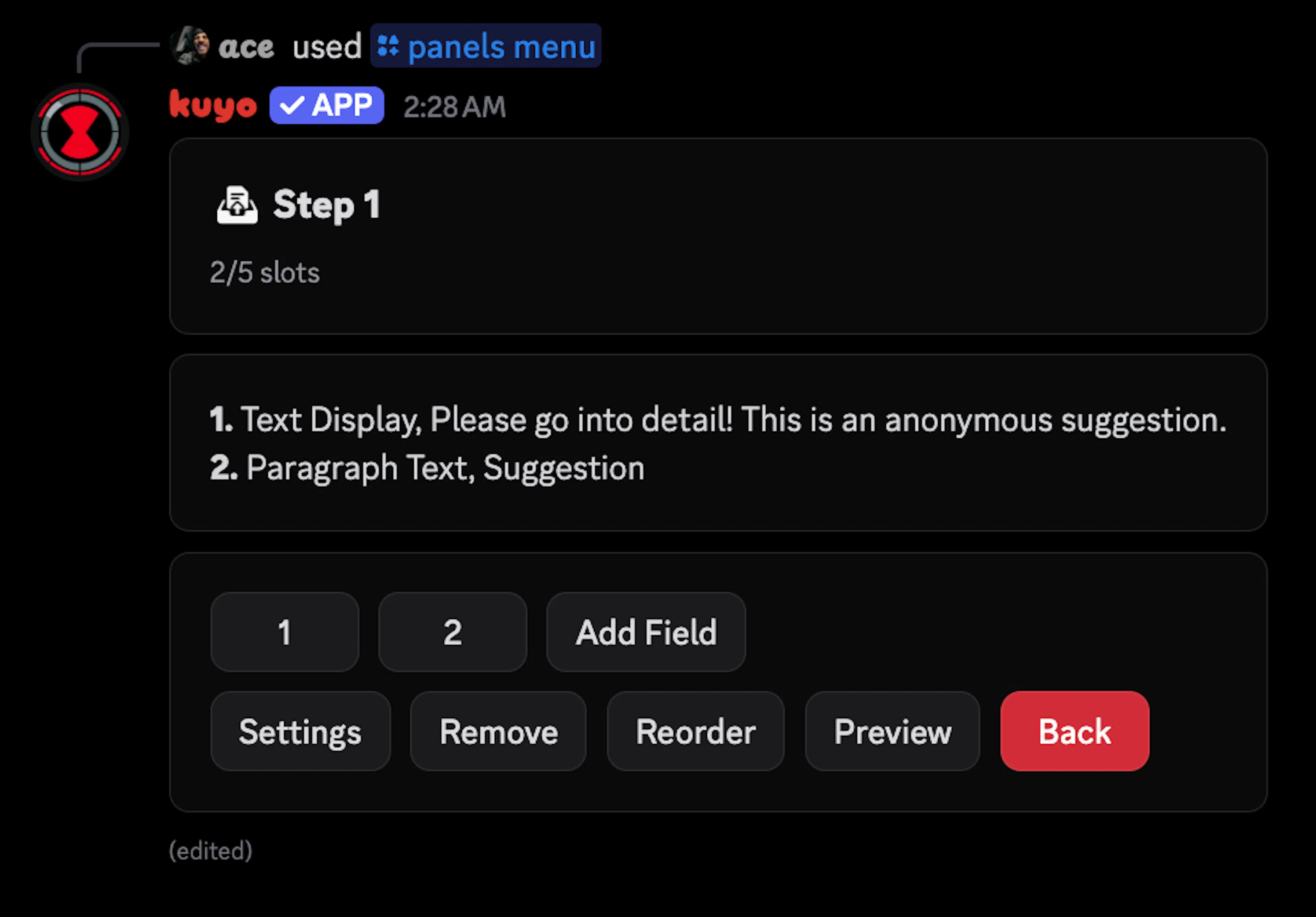
Add a step
Open the Builder and click Add Step. With more than one step you can Reorder them.
Add a question
Open the step, click Add Field and pick a type. Click Type later if you want to change it.
Fill it in
Set the label, description and the other options of the question. Use Required to decide if they have to answer it.
Check it
Click Preview to see the step like a member would.
The step's Settings let you rename it or clear all its questions.
Question Types
Short Text: A one-line answer.
Paragraph Text: A longer answer over more lines.
Text Display: Text they can read but not answer, like a hint or rules.
You can set a placeholder and a min and max length for text answers.
String Select: A dropdown with up to 25 options.
Radio Group: They pick one of up to 10 options.
Checkbox Group: They tick as many of up to 10 options as you allow.
Checkbox: A single yes or no box.
Every option has a label, and can have a description. Use Options to add them.
User Select, Role Select, Mentionable Select and Channel Select let them pick members, roles or channels from the server. For channels you can choose which channel types show up.
File Upload: They upload files, like screenshots. You can set how many files they need.
Reviewing
Every submission has Accept, Deny, Hold and Blacklist buttons. Lookup shows their past applications and lets staff leave notes about them.
After a decision you can still Undo Accept or Undo Deny, which asks to confirm first. You can add the same confirm step to Accept and Deny. You can also turn on voting buttons, like up and down votes or yes, maybe and no, so staff can vote before someone decides or if you're setting up suggestions.
Use Role Triggers to give the role on Accept, so you don't have to do it by hand.
/panels submissions lists every pending and on-hold submission with a link to it. /panels lookup shows the history and notes of one user.
Settings
Open a panel and click Settings. Everything is sorted into these sections:
Opening and Closing
You can close a panel with /panels close, or pause it for a while with /panels pause, like 2h or 3d (up to 30 days). Use /panels open and /panels unpause to undo it, and /panels status to check it. You can also do this with the buttons in Settings.
To stop one person from applying, use /panels blacklist add. Leave the panel empty to block them from every panel. /panels cooldown add makes them wait a set time before they can apply again.
Hubs
A hub puts more than one panel on one message. Members pick the panel they want with a button or a dropdown. For example, if you have 2 panels, like applications for Moderator and Chat Moderator, you would add both of them to a hub and your hub will have 2 apply buttons (or dropdown options).
Create a hub
In the /panels menu, click Hubs, then Create and give it a name.
Add your panels
Click Panels and pick the panels that should be on the hub.
Pick the look
Under Picker, pick Buttons for one apply button per panel, or Dropdown for one menu. Use Labels or Location to change how they look.
Set the message and channel
Under Message, write your own or reuse one of your panel messages. Then set the Channel and click Send.
With Shared you can pick one panel as the source. The settings you check, like messages, requirements or limits, then come from that panel for every application through the hub. The questions always stay on each panel.